
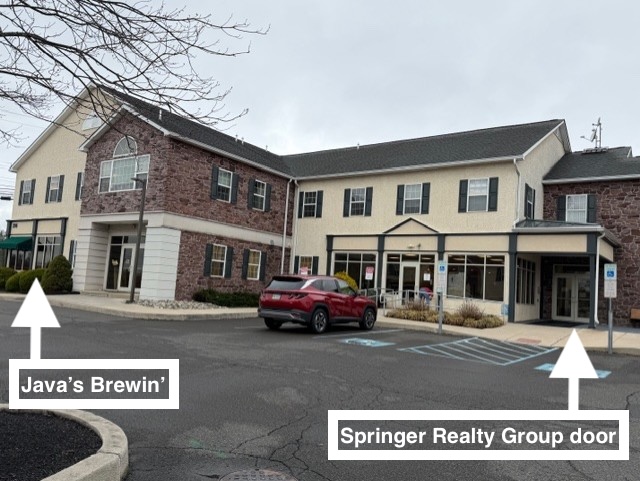
296 W. Ridge Pike, Suite 201
Limerick, PA 19468
It is pre-programed. If you change it, please set it back to where it was when you arrived.
Network: Verizon_44ZDZX
Password: clank9-tack-cry
Computer
There is a computer at this location.
Don't store personal info on the office computer.
Please keep the computer turned on; it will go to sleep on its own.
Supplies are provided by SRG.
If supplies run low, please send an email to Monique@SpringerRealtyGroup.com.
The office has a large conference room, allowing for only 1 meeting at a time.
If your plans change, cancel your booking.
Use the SRG booking system:
To register, click HERE
Password: make your own
Booking Instructions
1) After accessing the booking system link, go to the lower right corner and click the plus sign within the green circle
2) follow prompts to log in or make a log-in
3) select the date, time, & location space
4) click "Confirm booking"
5) verify that your reservation shows up on the calendar
Carry a thumb drive with you for emergencies. Most printers have a port, so you can add the info from your computer to the thumb drive, then insert it into the printer to print.
Scanning can be done using a phone app.
Printing/Scanning Fees
We get charged for printing and scanning.
You are welcome to use the printer for closings, but please do not use it for bulk printing/scanning.
Please print or scan in Black & White!
Agent Allotment
You are billed for usage over the monthly allotment of
50 black & white images (scanned or copied).
Agents may print/scan at any office & the usages will be combined to compute your total monthly usage. This will be compared to the allotment, and you will be billed accordingly. The fees are per copy/scanned image.
Limerick Fees:
Color- $0.10 per page.
B & W- $0.02 per page.
Printer Pin:
You will need your Printer Pin (Printer ID) to unlock the printers.
Your Printer Pin can be found in your Agent File in Paperless Pipeline under the "More Info" section.
To Scan to Email or Copy:
1. On the home screen, enter your Printer Pin.
2. Select the function.
3. Change the color setting to Black & White each time before you print or scan (it defaults to color). Hit "Start".
Please keep the printer turned on. It will go to sleep on its own.
Ways to Print:
1) Office computer- This is the easiest way because the computer is already hooked up to the printer.
2) Direct connect- Use the blue cord on the printer to attach directly to your computer (USB port connection).
3) Thumb drive- The printer has a USB port. Carry a thumb drive as backup, just in case you can't print from your laptop.
4) Laptop- To print from your laptop, you will need to install the printer driver onto your laptop before your first usage, unless you use an apple product & air print. To access the printer driver go to:
Troubleshooting:
-Restart the printer by turning it off for a minute, then turn it back on.
- Check that the internet is working and that you are on the correct network listed above.
-Call the number on the printer for help. If it’s still not working, please alert our COO.
-Print using a thumb drive or the office computer.
More Info
How to add a printer to your computer:
§ Go to your Settings and click on the tab that includes Printers
§ Click “Add Printer”
§ Click on the Printer to highlight it. Your computer should automatically find the printer, provided you are on the same WIFI network as the printer.
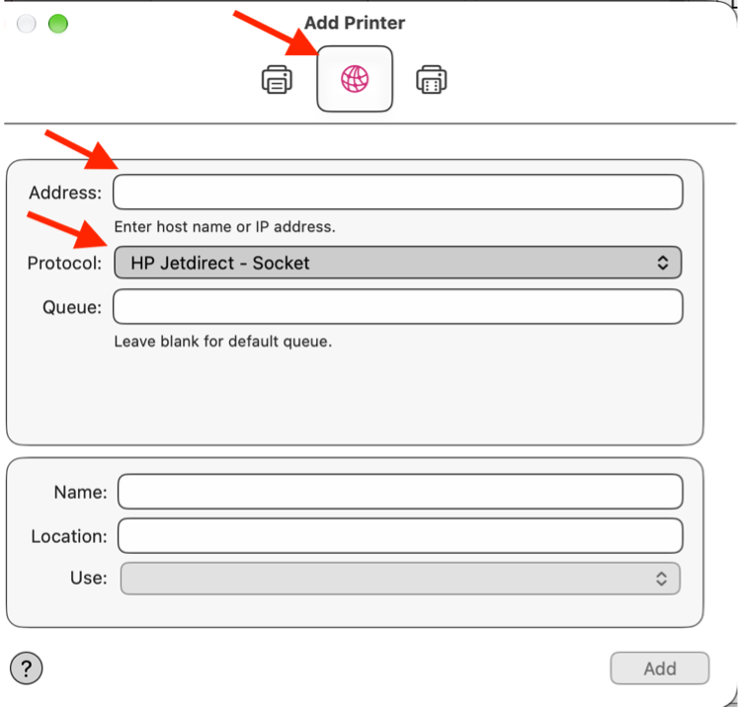
§ Then click the world icon at the top center. (see image below)
§ In the Address field, type the computer IP address (see image below)
The Limerick IP Address is: 192.168.1.223
Note: to find the IP address, go to the copier & select the “Device Info” button
§ In the Protocol field: select HP Jetdirect – Socket (see image below)
How to download the Printer Driver to your computer:
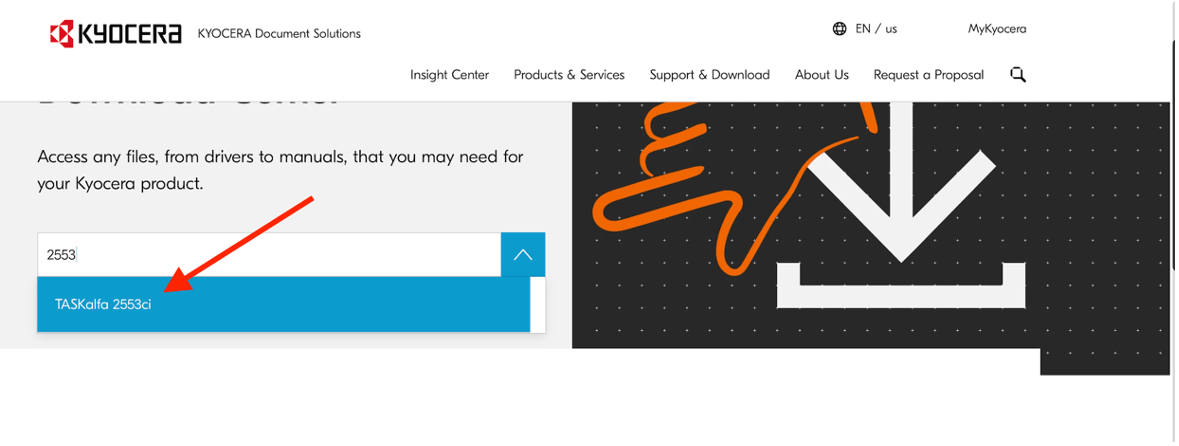
§ Go to the Kyocera Support & Downloads page (Downloads Center)
§ Type your specific printer model number or Taskalfa series name into the search box and select your model from the list.
The Limerick model number is TASKalfa 2553ci
§ Scroll down the page, & in the center under the model number, select the “Drivers” tab, and click the Blue download icon to the right of your computer operating system version
(e.g. Windows 11 or 10, or Mac OS).
§ Download the recommended KX Driver or KX V4 Driver for full feature access.
§ Open the downloaded file (it might be in your downloads folder) click Web Build if necessary, accept the agreement terms, and follow the setup wizard prompts --> Install.
How to add your Printer Pin Code to your computer:
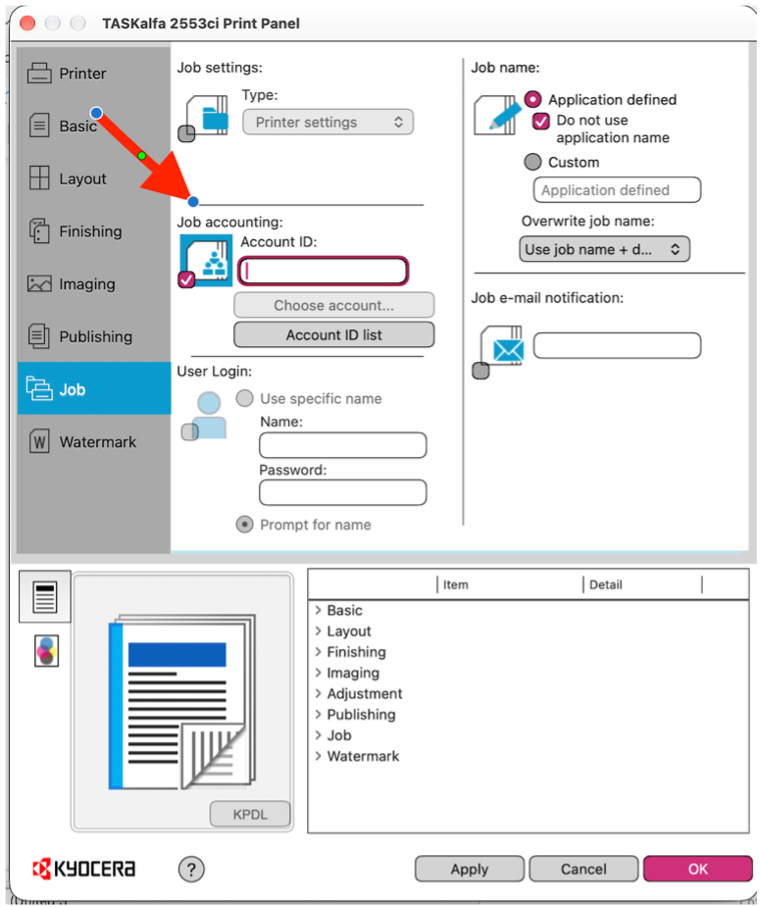
§ Search your computer for Kyocera Print Panel --> Open
§ Select Printer --> On the left panel, go to JOB
§ Add your Printer Pin Code to the “Account ID” field. You may have to click the blue box to the left of the field to enter it. (see image below)
If there is a printer problem, please call the number on the printer.